Guest profile
Return and edit your guest nickname
Recognize a returning guest on this browser and change the nickname without starting a second guest profile.
Before you start
- A guest nickname must already be saved in this browser. A different device or cleared browser storage may be treated as a new guest.
Steps
Find the guest identity chip
On setup, look for Playing as [nickname] · Edit near the top. Returning guests skip the first-use nickname prompt.
Open the Guest profile: returning identity guideOpen the nickname editor
Choose Edit, update the nickname, then choose Save nickname. The same guest identity is retained for this browser profile.
Open the Guest profile: returning identity guideUse the updated name
Continue to guest solo play or the guest Challenge flow. This local nickname does not switch or identify a Melirate learner. Member account access has a separate explicit sign-in and learner-choice flow.
Open the Guest profile: first nickname guide
What to expect
- The name is stored locally when browser storage is available.
- Editing a nickname does not provide cross-device recovery or authenticated learner switching.
Other paths
Protect guest data
Review what the guest profile stores and what it does not mean.
Open guide: Understand guest data and practice scoresSign in with Melirate
Review the separate account handoff, learner choice, and current preview availability.
Open guide: Sign in and choose a learner
Visual guide
Recorded walkthrough
These are silent local synthetic preview captures. Account clips and screenshots show the unconfigured guest preview, not the locally prepared member flow. Some demos use 5-, 15-, or 20-second timers; private invitation details are hidden. If playback is unavailable, use the captions when present or read the full transcript below.
Read the full recording transcript
Enter a synthetic guest nickname and finish one short local round.
The guest name and result are saved only in this browser. This is not an authenticated Melirate account.
On a later visit, select the guest profile in the header and edit its nickname.
After reload, the edited name is still shown. Playing again uses the same saved guest history.
Annotated screens
Each numbered note names the control or state marked on the screen.
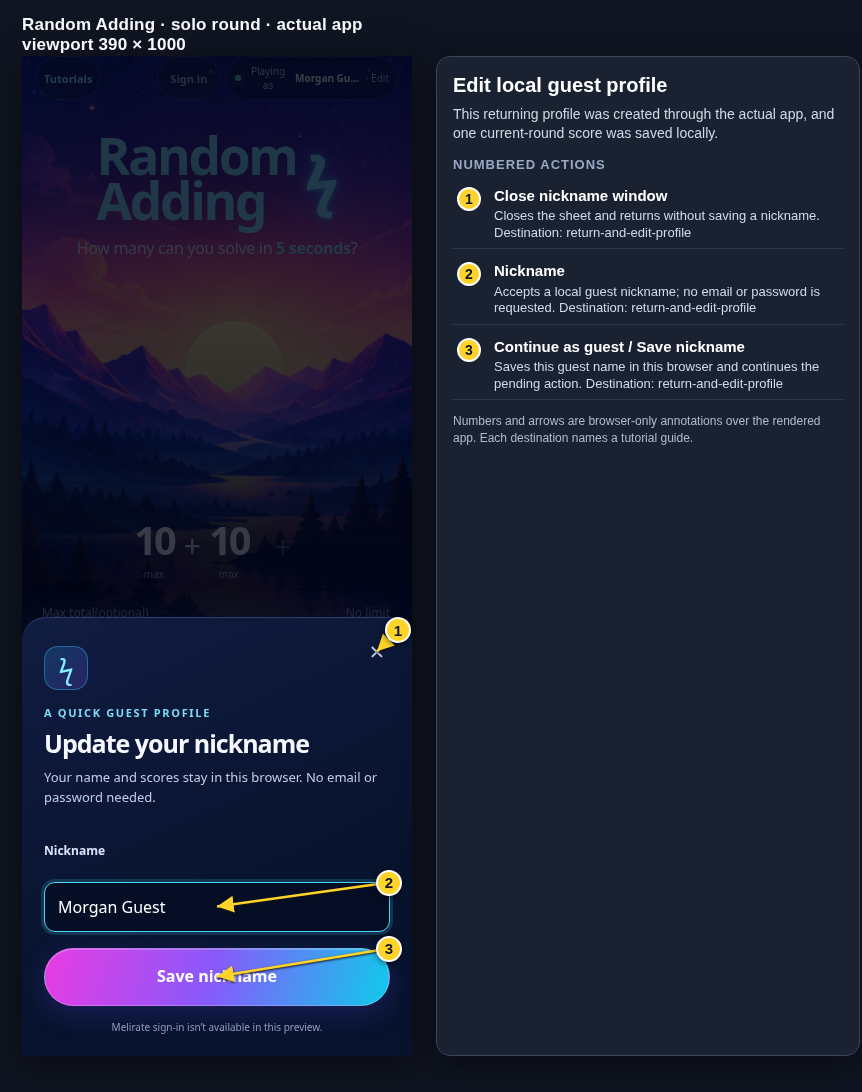 View full-size original annotated screen (new tab)
What the numbered markers show
- 1Close nickname windowCloses the sheet and returns without saving a nickname.Open guide: Return and edit your guest nickname
- 2NicknameAccepts a local guest nickname; no email or password is requested.Open guide: Return and edit your guest nickname
- 3Continue as guest / Save nicknameSaves this guest name in this browser and continues the pending action.Open guide: Return and edit your guest nickname
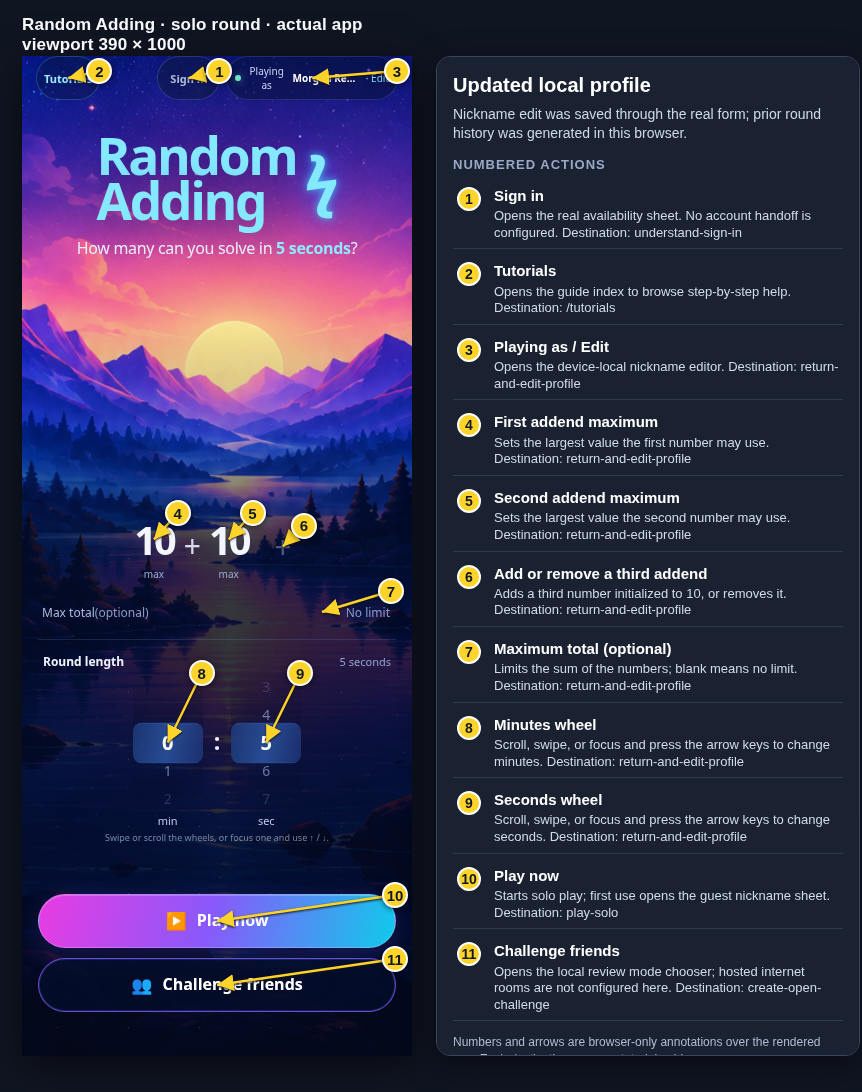 View full-size original annotated screen (new tab)
What the numbered markers show
- 1Sign inOpens the real availability sheet. No account handoff is configured.Open guide: Sign in and choose a learner
- 2TutorialsOpens the guide index to browse step-by-step help.Browse all tutorials
- 3Playing as / EditOpens the device-local nickname editor.Open guide: Return and edit your guest nickname
- 4First addend maximumSets the largest value the first number may use.Open guide: Return and edit your guest nickname
- 5Second addend maximumSets the largest value the second number may use.Open guide: Return and edit your guest nickname
- 6Add or remove a third addendAdds a third number initialized to 10, or removes it.Open guide: Return and edit your guest nickname
- 7Maximum total (optional)Limits the sum of the numbers; blank means no limit.Open guide: Return and edit your guest nickname
- 8Minutes wheelScroll, swipe, or focus and press the arrow keys to change minutes.Open guide: Return and edit your guest nickname
- 9Seconds wheelScroll, swipe, or focus and press the arrow keys to change seconds.Open guide: Return and edit your guest nickname
- 10Play nowStarts solo play; first use opens the guest nickname sheet.Open guide: Play a solo round
- 11Challenge friendsOpens the local review mode chooser; hosted internet rooms are not configured here.Open guide: Create an Open Challenge