Account access
Sign in and choose a learner
Understand the explicit Home handoff and local member practice path, and why the current hosted preview still offers guest play only.
Before you start
- These steps describe the locally prepared member flow when its backend is enabled. The deployed Random Adding preview remains unconfigured for member access; there is no active Home handoff or production history yet.
Steps
Check whether account access is enabled
From setup, choose Sign in or open Account. The app checks the identity endpoint first. If it reports guest and the member service is configured, Sign in with Melirate starts a one-time handoff to Home. If the endpoint is missing or unavailable, the app says so and stays in Random Adding; guest rounds do not wait for this check.
Open the Account access: sign-in status guideSign in on Home
The configured handoff opens Melirate Home for sign-in; credentials stay on Home. Home shows the verified account and learner choices. Current canonical answer sync supports the verified self learner only; selected-child and observer writes are not supported yet.
Open the Account access: choose an authorized learner guideReturn to member setup
After you choose yourself and press Continue on Home, Random Adding resolves that persisted choice and opens member setup when authority is valid. Learner switching is always explicit. A queued round remains bound to its original self learner; switching away pauses its sync, and it is never sent under another learner. Returning to the same learner lets you choose Retry sync with the current verified selection.
Open the Account access: selected learner and profile switching guidePlay a local member round
Member questions, scoring, and feedback run locally; start, wrong answers, and correct answers do not wait for network or storage. The tab records each submitted answer and its timing, then queues the finished round after results appear. Refreshing does not restore an active member round. Member play does not use a guest best score or start a room challenge.
Open the Account access: member answers and Activity receipts guideRead sync and Activity status
Results appear at timeout while sync continues. Saving means the batch is in progress; Retry means it needs sync. The answer journal is kept in this tab's sessionStorage when available so it can retry after reconnect; if browser storage is unavailable, it stays only in tab memory, so keep the tab open. Only a confirmed canonical receipt says answers are saved in Melirate Activity, and the Open Activity link leads there. Eligible solo facts count toward skill predictions; an empty round has no answers to sync.
Open the Account access: member sync and recovery states guideReview earlier practice saves
The Practice history screen contains earlier summary-only round saves, not the new answer records in Activity. Load more and export apply to those earlier saves. Deleting them does not delete canonical Activity records. The current self learner can confirm deletion of these earlier Random Adding saves; this does not delete a Melirate account or local guest data.
Open the Account access: earlier practice saves guideSign out or continue as a guest
Sign out revokes the Random Adding member session, then offers guest play. If revocation is not confirmed, the UI reports that honestly and keeps guest rounds separate; it does not claim an account session was revoked. Guest and group scores are never imported into member history.
Open the Account access: guest separation and sign-out guide
What to expect
- The current hosted preview remains guest-only until the separate member activation is completed and verified.
- The recording and screenshots show the earlier guest/unconfigured preview, not the locally prepared member flow; the archived member-screen references also show the unavailable sign-in sheet. No account, learner, receipt, or saved record is fabricated by this guide.
Other paths
Play as a guest
Start a local solo round without an account request.
Open guide: Play a solo roundRead member sync states
Compare local guest saves with member Saving, Saved, Retry, and Activity states.
Open guide: Read your results and replayGuest data boundary
Review what local guest play saves and what it does not claim.
Open guide: Understand guest data and practice scores
Visual guide
Recorded walkthrough
These are silent local synthetic preview captures. Account clips and screenshots show the unconfigured guest preview, not the locally prepared member flow. Some demos use 5-, 15-, or 20-second timers; private invitation details are hidden. If playback is unavailable, use the captions when present or read the full transcript below.
Read the full recording transcript
This saved recording is from the earlier guest-only, unconfigured preview; it does not show the locally prepared member flow.
Choose Sign in to check account availability.
The saved sheet reports that sign-in is not configured in this preview.
Check again retries that availability request.
Continue as guest returns to local guest play.
The current hosted preview is still unconfigured for member access; this capture is not evidence of activation.
Annotated screens
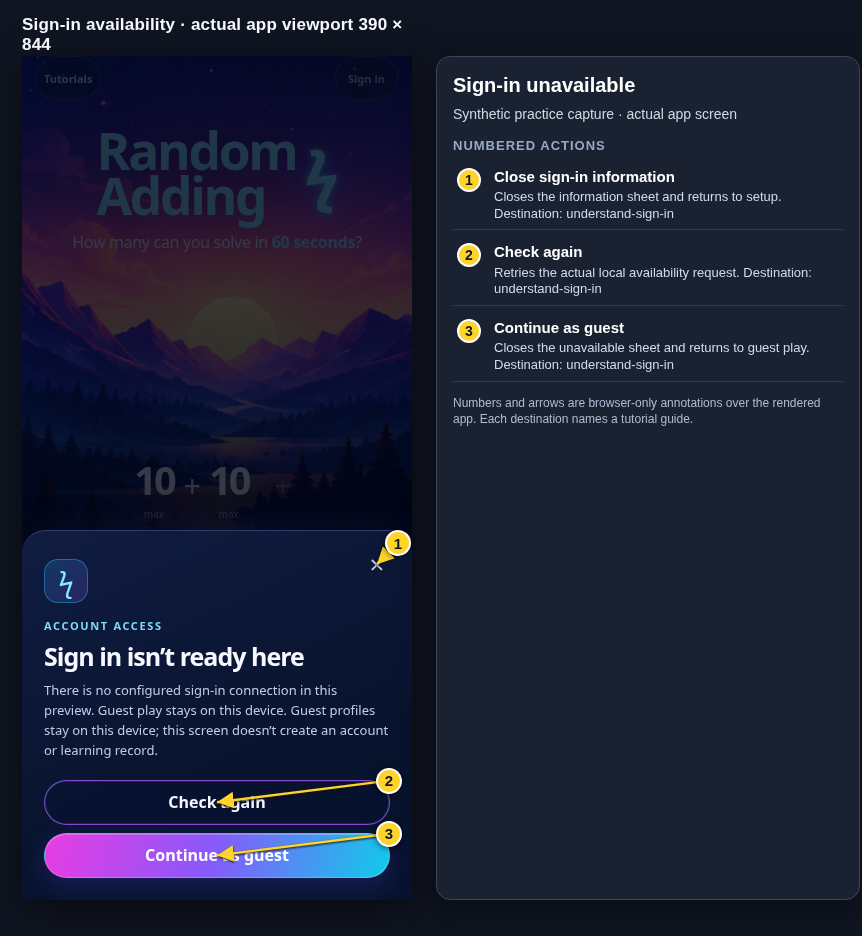
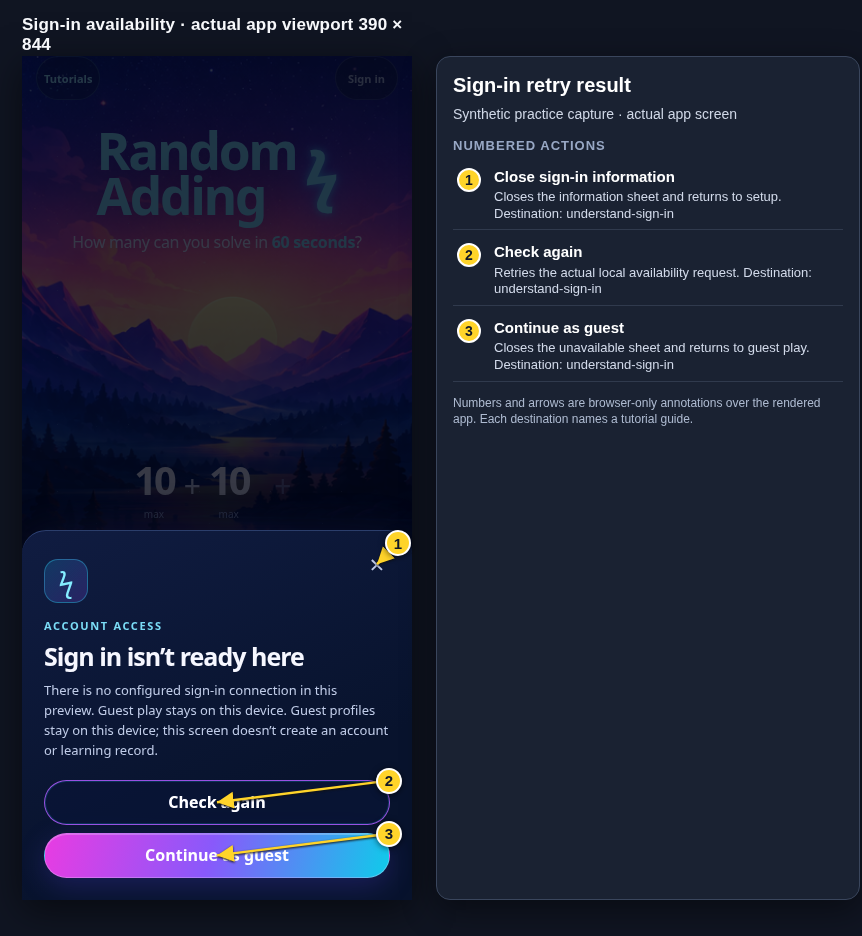
Each numbered note names the control or state marked on the screen.
 View full-size original annotated screen (new tab)
What the numbered markers show
- 1Close sign-in informationCloses the information sheet and returns to setup.Open guide: Sign in and choose a learner
- 2Check againRetries the actual local availability request.Open guide: Sign in and choose a learner
- 3Continue as guestCloses the unavailable sheet and returns to guest play.Open guide: Sign in and choose a learner
 View full-size original annotated screen (new tab)
What the numbered markers show
- 1Close sign-in informationCloses the information sheet and returns to setup.Open guide: Sign in and choose a learner
- 2Check againRetries the actual local availability request.Open guide: Sign in and choose a learner
- 3Continue as guestCloses the unavailable sheet and returns to guest play.Open guide: Sign in and choose a learner